If you stop paying for iCloud, what happens to your photos?
The 200 GB plan is $2.99 a month, 2 TB is $9.99, and once your photos live in iCloud it quietly turns into a bill you can’t stop paying. People ask the same question before cancelling: do my photos disappear? Short answer: nothing is deleted the day you cancel. iCloud stops syncing, and that’s the real problem, because with Optimize iPhone Storage on, your phone may be holding small copies while the full-size originals exist only in iCloud. So the order matters. Get the originals onto a Mac or a drive first, then turn iCloud Photos off, then downgrade. Here’s how, with what Apple actually says at each step.
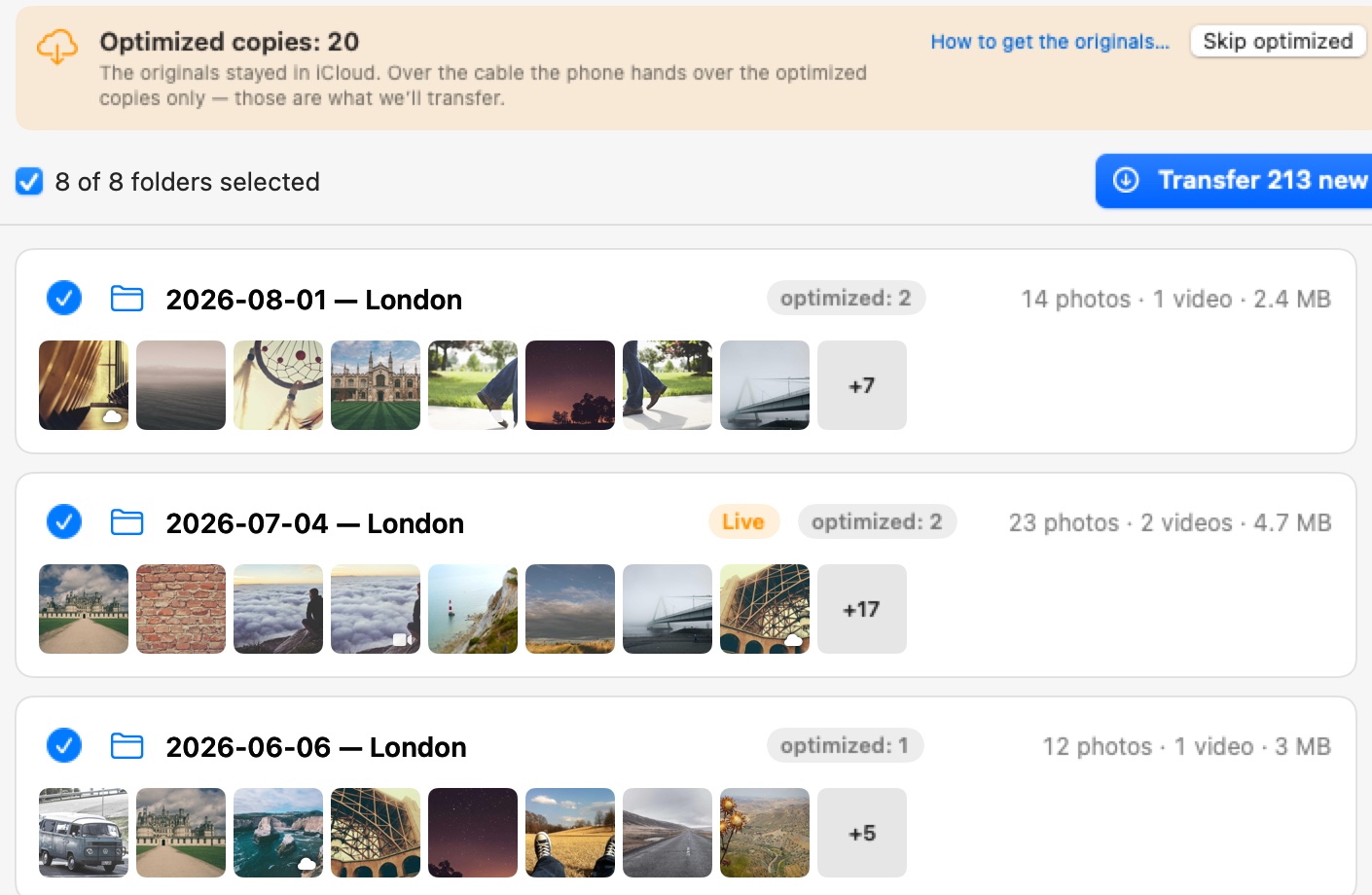
Photo Transfer counts the optimized copies before anything is copied: the originals of these photos are in iCloud, and the phone has only the small versions.
What Apple says happens when you cancel
Apple’s page on downgrading is short. The change takes effect when your current billing period ends, and from then on you’re on the free 5 GB. If what you keep in iCloud is more than that, iCloud won’t sync or update your information and backups won’t complete. That’s the whole of it. Nothing about deleting your photos, and nothing about keeping them either. Apple’s advice fits in one line: before you downgrade, download or remove whatever won’t fit.
Two more things from Apple’s storage page. When iCloud is full, new photos and videos stop uploading and the phone stops backing up. And if you’re over the limit, anything you delete is removed immediately, with no 30 days in Recently Deleted. So “I’ll delete a few to get under the limit” is exactly the wrong move while the originals are still only in iCloud.
There is one place where Apple does put a date on deletion: turning off iCloud Photos for your whole account, under Settings → your name → iCloud → Storage → iCloud Photos. Do that and the photos in iCloud are deleted 30 days later, with an Undo Delete until then. That’s a different switch from cancelling the plan, and nothing in this article needs it.
Someone on r/iCloud asked exactly this, panicking with loads of photos, and the answer they got was the right one: not deleted, but syncing stops, and if Optimize Storage is on, the real photos are only in iCloud. Plan first.
The catch: Optimize iPhone Storage
iCloud Photos has two ways to live on your phone. With Download and Keep Originals, every full-size photo is on the phone. With Optimize iPhone Storage, which Apple describes as keeping space-saving versions on the device, the phone holds a smaller copy and downloads the original from iCloud when you open one. It works beautifully for as long as you pay. Stop paying, and those small copies are what you’re left with.
Check which one you have: Settings → your name → iCloud → Photos. Then compare two numbers. Settings → General → iPhone Storage shows how much Photos takes on the phone. Settings → your name → iCloud → Storage (Manage Account Storage on older versions) shows how much iCloud Photos takes in the cloud. If the cloud number is much bigger, a lot of your originals aren’t on the phone.
This matters for a cable too. Image Capture, Photos on the Mac and Photo Transfer all copy what the phone has. An optimized copy comes across looking like any other photo, with the same name and the same date, just a few hundred kilobytes instead of a few megabytes. We went through how to tell them apart in the Image Capture article. Copy, delete, cancel, and the original is gone for good.
Get the originals down first
Three ways. Pick by how big the library is and where you have room.
On the iPhone. Settings → your name → iCloud → Photos, switch to Download and Keep Originals, and leave the phone on Wi‑Fi and on power. Apple says originals download over Wi‑Fi or cellular, and for a few years of photos that means a night, sometimes several. The phone needs free space for the whole library. If it doesn’t have it, use the Mac instead. Once the download is done, copy the photos to the Mac or straight to a drive over a cable, the way the storage article and the external drive article describe.
On the Mac. In Photos, choose Photos → Settings → iCloud and select Download Originals to this Mac, then let it finish. Then File → Export → Export Unmodified Originals into a folder or onto a drive. You need room on the Mac for the whole library, or you move the Photos library to a drive first. It’s slower than the cable, but it’s the one way that gets every original, including the ones the phone has no room for.
From iCloud.com. For a smaller set, go to icloud.com/photos, select the photos and click Download. They come down in the most compatible format for the device you’re on, and More Download Options lets you pick another. For a whole library it’s the slowest of the three.
If you’d rather have another cloud. Apple can send a copy of your iCloud Photos library to Google Photos. You ask for it at privacy.apple.com, and most transfers take three to seven days, some up to 30. Shared albums, smart albums and Live Photos don’t go across, only the latest edit of each photo does, and Advanced Data Protection has to be off. It’s a copy, not a move, and Google has storage limits of its own.
Check what you’ve got
Before you turn anything off, make sure the files on the Mac or the drive are the real ones. The storage article has the three checks: the count, the sizes, and opening a few. Here the sizes are the one that matters. In Finder, switch to List view and sort by Size. Full photos from a recent iPhone are a few megabytes each. Optimized copies are a few hundred kilobytes, and they sink to the bottom. If the bottom of the list is long, the download hasn’t finished, or Optimize Storage is still on somewhere.
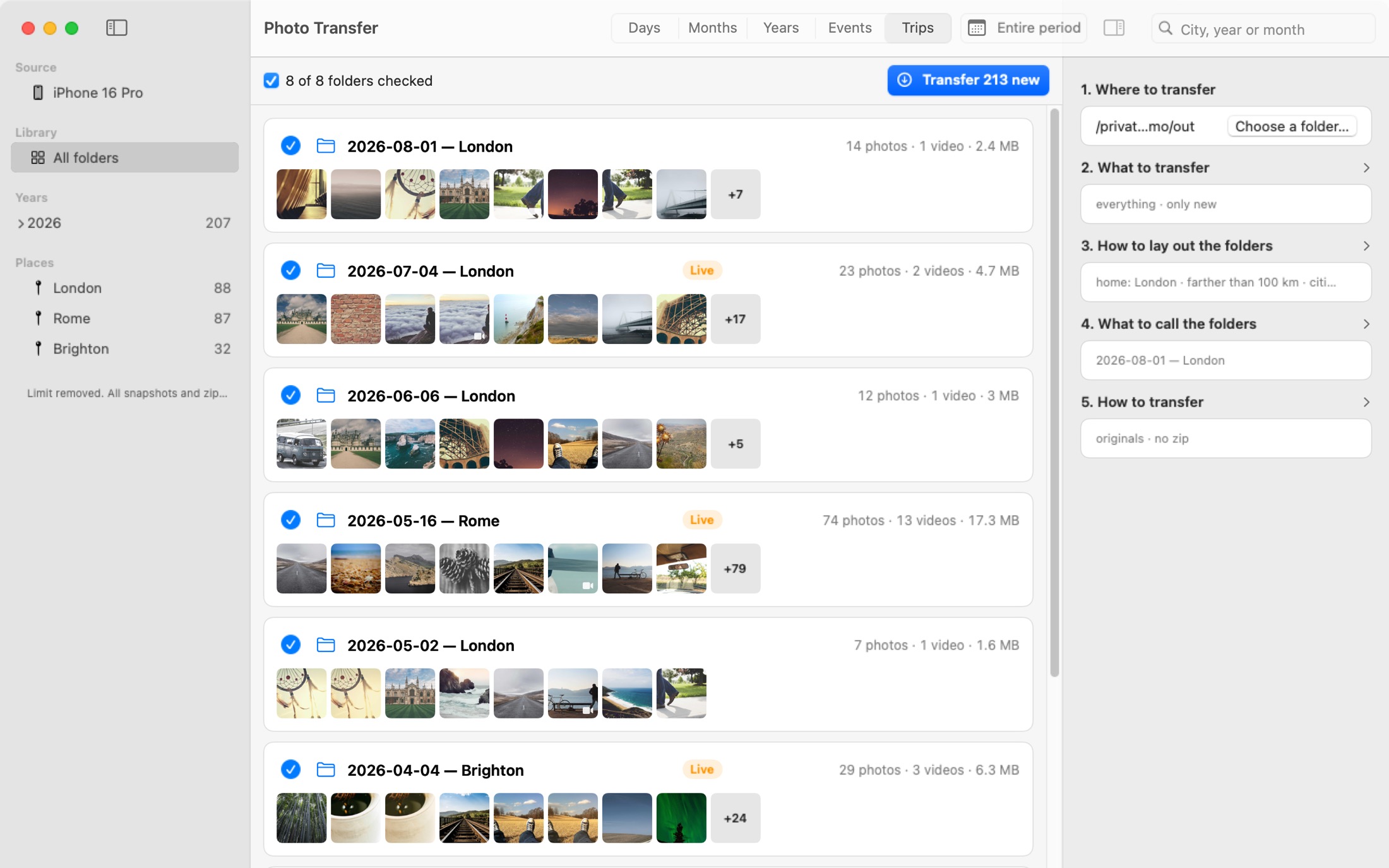
Photo Transfer, the app I make, counts the optimized copies before it copies anything. If some photos are on the phone only as optimized copies, it tells you how many and asks whether to transfer them or skip them, and the report at the end says how many were skipped and which setting to change on the phone before you try again. The transfer history keeps that list, so you can come back to it later. Free for 50 snapshots a day, $14.99 once for everything.
Turn off iCloud Photos, in the right order
Only after the originals are safe. On the iPhone, go to Settings → your name → iCloud → Photos and turn off Sync this iPhone. The phone asks what to do with the photos it has. Download Photos & Videos keeps a copy on the phone. Remove from iPhone deletes them from the phone without saving a copy. If you switched to Download and Keep Originals in the step before, Download Photos & Videos is the one, and there’s nothing left for it to fetch. Apple’s own note on that screen is worth repeating: if you don’t download a copy, the optimized photos are not the original resolution.
On the Mac, go to System Settings → your name → iCloud → Photos, turn off Sync this Mac, and choose Download. If you exported the originals to a drive and don’t need the library on the Mac, the Delete from Mac option clears it. Check the drive first.
Why this order matters: while iCloud Photos is on, deleting a photo on one device deletes it everywhere. Once it’s off, your phone and your Mac stop being one library. Delete from the phone to free space and the Mac copy stays, which is the whole point of the storage article.
Do it on each device in turn, iPhone, iPad, Mac. Not the account-level switch from the first section.
Downgrade the plan
On the iPhone (iOS 18.4 and later): Settings → your name → Subscriptions → iCloud+. Cancel Subscription takes you to the free 5 GB; See All Plans lets you pick a smaller one. On a Mac with macOS 26: System Settings → Apple Account → iCloud → Manage Plan under iCloud+ Features. Either way it takes effect at the end of the billing period, so you keep what you’ve paid for until then.
Which plan: the free 5 GB if nothing else of yours lives in iCloud. Or 50 GB for $0.99 if you want to keep the iPhone backing up to iCloud, which is the next section.
What still needs iCloud afterwards
With iCloud Photos off, your photo library becomes part of the iPhone backup, and a backup with a few years of photos in it won’t fit in 5 GB. Apple’s page says it plainly: save your photos and videos to your computer, then back up. Once the photos are on the Mac and off the phone, the backup shrinks to the things that are actually on the phone, and 50 GB is usually plenty for that. Or skip iCloud for backups too and back the iPhone up to the Mac over the cable, in Finder, which is free. Everything else that syncs through iCloud, Contacts, Notes, Calendars, keeps working on the free plan as long as you stay under 5 GB.
Keep a second copy
Once iCloud Photos is off, the Mac or the drive is the only place those photos exist. One disk can fail, get stolen or meet a cup of coffee. The simplest insurance is an external drive with Time Machine, which is built into macOS and backs the Mac up every hour on its own. Or copy the photo folders to a drive you keep somewhere else. Two copies in two places, and iCloud’s copy is the one you can do without.
Checklist
- Settings → your name → iCloud → Photos: Optimize iPhone Storage or Download and Keep Originals?
- Compare Photos on the phone (General → iPhone Storage) with iCloud Photos in the cloud (iCloud → Storage).
- Get the originals down: Download and Keep Originals on the phone, or Download Originals to this Mac in Photos, then export.
- Check the sizes in Finder. A long tail of files under a megabyte means optimized copies.
- Turn off Sync this iPhone and Sync this Mac on each device, and choose Download.
- Only then: Settings → your name → Subscriptions → iCloud+ → Cancel Subscription or See All Plans.
- Don’t delete anything in iCloud while you’re over the limit: there’s no Recently Deleted then.
- Second copy: Time Machine or another drive.
 Photo Transfer
© 2026 Viacheslav Koniukhov. Sold on this site by Paddle as merchant of record. Apple, iPhone, iPad, Mac, macOS and App Store are trademarks of Apple Inc. Photo Transfer is an independent product, not affiliated with or endorsed by Apple.