Image Capture not showing all your photos? Here’s what’s actually missing
The phone says 8,000, Image Capture says 6,000. It happens for six different reasons, and the size of the gap usually tells you which one you’ve got. One of them is worse than the others: the files do arrive on the Mac, they just aren’t the originals.
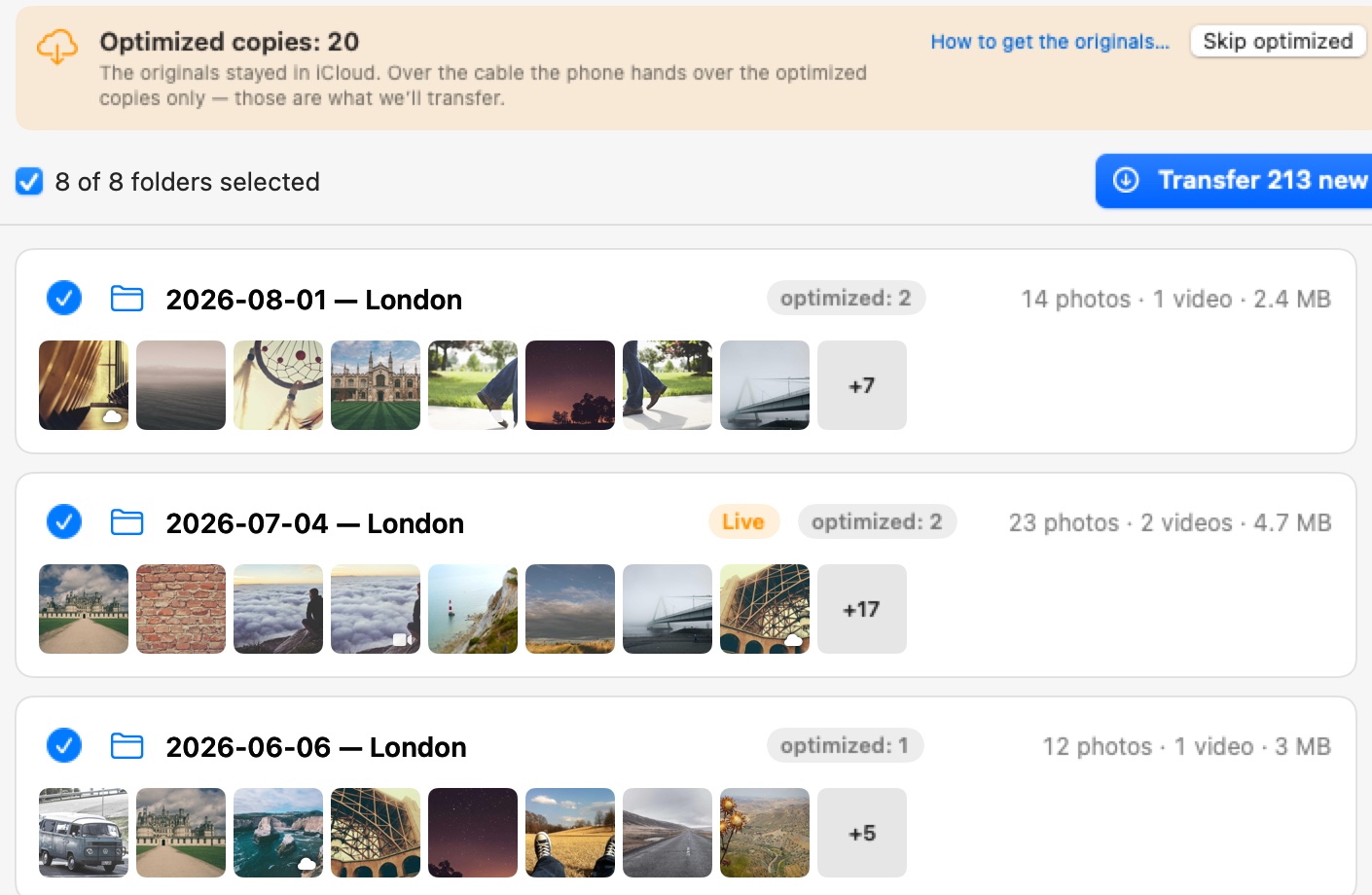
Before anything is copied: 20 of these photos exist on the phone only as reduced copies, and each folder shows how many.
First, compare the numbers
Open Photos on the iPhone and scroll to the very bottom of the library. The count is there: so many photos, so many videos. Then plug the phone in, open Image Capture and see how many items it lists.
A gap of hundreds or thousands is almost always iCloud. A gap of a few dozen is usually the Hidden album, or a library that hasn’t finished loading yet. No photos at all means the phone is locked or the Mac isn’t trusted.
1. The photos aren’t on the phone
Image Capture can only show what’s physically on the iPhone. With iCloud Photos on and “Optimize iPhone Storage” selected, the phone keeps space-saving versions and the originals live in iCloud, in Apple’s own words. When storage gets tight, some photos aren’t on the phone at all, only a thumbnail in the Photos app that gets fetched when you tap it.
It gets worse when iCloud is full. Nothing new syncs down, so the phone quietly falls behind the library you see in Photos. That’s the 8,000 vs 6,000 case: a Reddit user with a full iCloud had “Download and Keep Originals” on and still saw a quarter of the library missing, because nothing could come down until there was space.
Apple says it plainly in its import guide: with iCloud Photos on, you must download the original, full resolution versions to the iPhone before you import. The sentence sits in the Windows section, but the cable doesn’t care which computer is on the other end.
On the iPhone: Settings → Photos → Download and Keep Originals. Leave it on Wi‑Fi and power. A large library takes hours, sometimes a night. If iCloud is full, free some space or pay for one month first, otherwise nothing comes down.
2. The photos are there, but as reduced copies
This is the one nobody warns you about. With “Optimize iPhone Storage” on, a lot of photos sit on the phone as smaller versions, roughly screen-sized. Image Capture lists them like any other photo and copies them to the Mac without a word. In the folder they look fine, they open, the dates are right. They just aren’t the originals. You find out a year later, when a print comes out soft or you zoom in and there’s nothing there.
The tell is file size. An original iPhone photo is usually 2 to 5 MB; a reduced copy is a few hundred KB. Or open the photo in Photos on the iPhone: if it takes a moment and a small progress circle appears before it sharpens, the full version wasn’t on the phone.
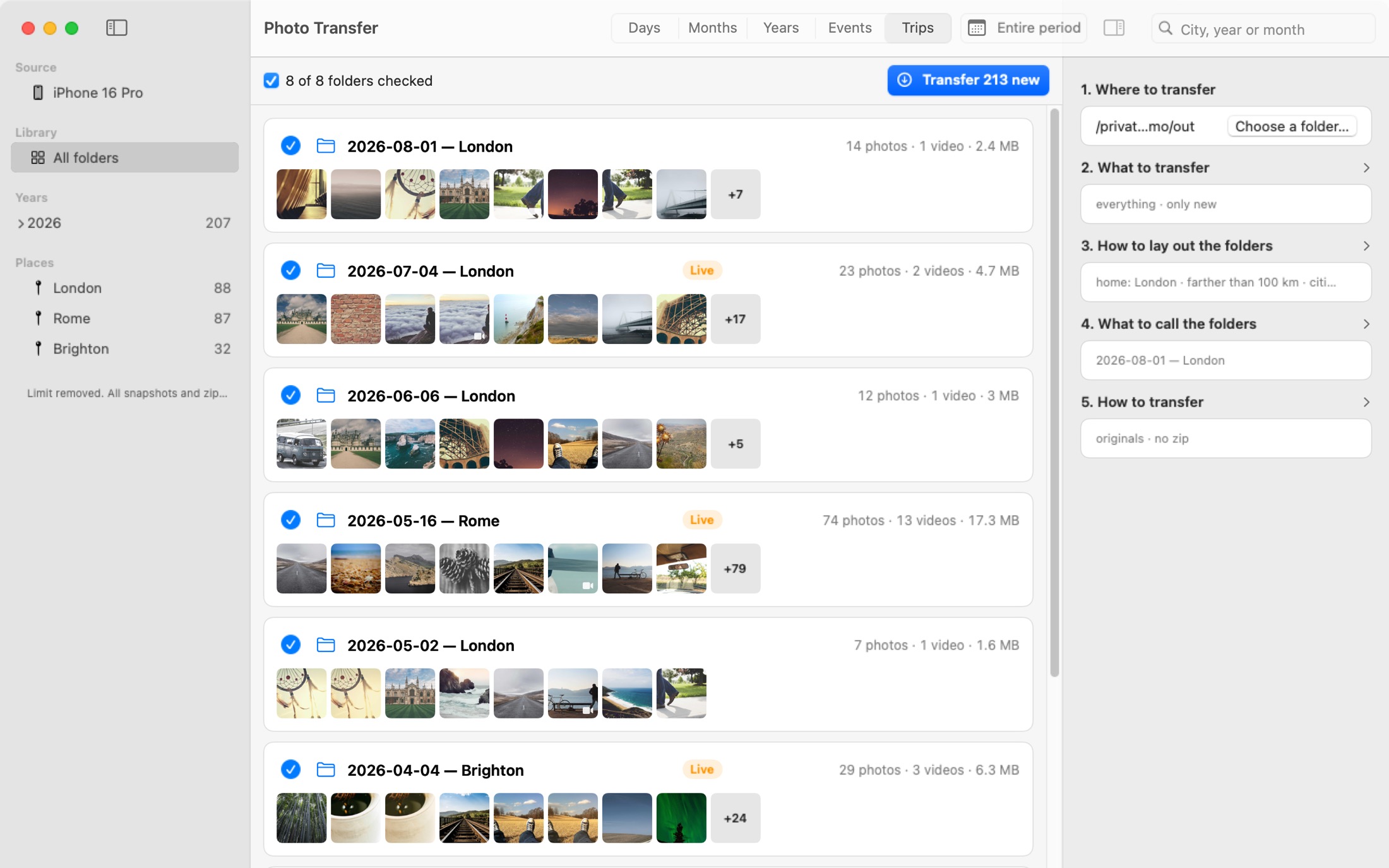
It counts these files before copying anything. Each folder shows how many, and you choose: skip them for now, or take them as they are and know which ones they were. Free for 50 snapshots a day.
4. The phone is locked, or the Mac isn’t trusted
A locked iPhone shows Image Capture an empty list, or a stale one from the last time. The first time a phone meets a Mac it also asks two things: “Allow” on the Mac for the accessory, and “Trust This Computer” on the phone. Miss either and you get nothing.
Unlock the phone and keep it unlocked for the whole import. Answer both prompts. If you never see them, try another cable, and a port on the Mac itself rather than a hub.
5. A big library is still loading
Image Capture fills its list gradually. With ten thousand items the count keeps climbing for a minute or two, and new items land at the top, so the window looks complete before it is.
Wait until the count stops changing, then scroll to the top. Don’t start the download before that, or you’ll end up importing twice.
6. Antivirus on the Mac
There’s a well documented case on Apple’s own community forum. Image Capture stopped showing new photos on one iMac while the same iPhone worked fine on another. Safe mode, preference files, restarts, nothing helped. Removing Bitdefender did, including the leftover processes in Activity Monitor. Malwarebytes has been named in the same role elsewhere.
Quit the security tool completely, check Activity Monitor for anything of it still running, reconnect the phone. If that was the cause, decide whether you need the tool at all.
Still short?
There’s one case Apple hasn’t fixed. On Ventura, a user with 510 photos on the phone saw 260 in Image Capture and in Photos. The rest appeared only after being opened one by one on the iPhone. Apple’s answer in the thread was to contact support. If that’s where you are, opening the affected photos on the phone is the only known workaround, and importing through Photos.app is the fallback.
Checklist
- Compare the counts: Photos on the iPhone vs Image Capture.
- Settings → Photos → Download and Keep Originals, then wait for the download to finish.
- iCloud full? Free space first, or nothing syncs down.
- Unlock the Hidden album for the import (macOS 15.4 and later).
- Phone unlocked, both prompts answered, cable straight into the Mac.
- Wait for the count to settle, scroll to the top.
- Quit antivirus and reconnect.
 Photo Transfer
© 2026 Viacheslav Koniukhov. Sold on this site by Paddle as merchant of record. Apple, iPhone, iPad, Mac, macOS and App Store are trademarks of Apple Inc. Photo Transfer is an independent product, not affiliated with or endorsed by Apple.