How to sort iPhone photos into folders by date on a Mac
A few years of iPhone photos is a few thousand files, and a folder of four thousand IMG_ names helps nobody. What people actually want is a folder per day, month or trip, named so it sorts in Finder and still makes sense in ten years. The Mac’s built-in apps get you part of the way there. Here are three ways, from free and by hand to automatic, plus the one naming rule that makes any of them work.
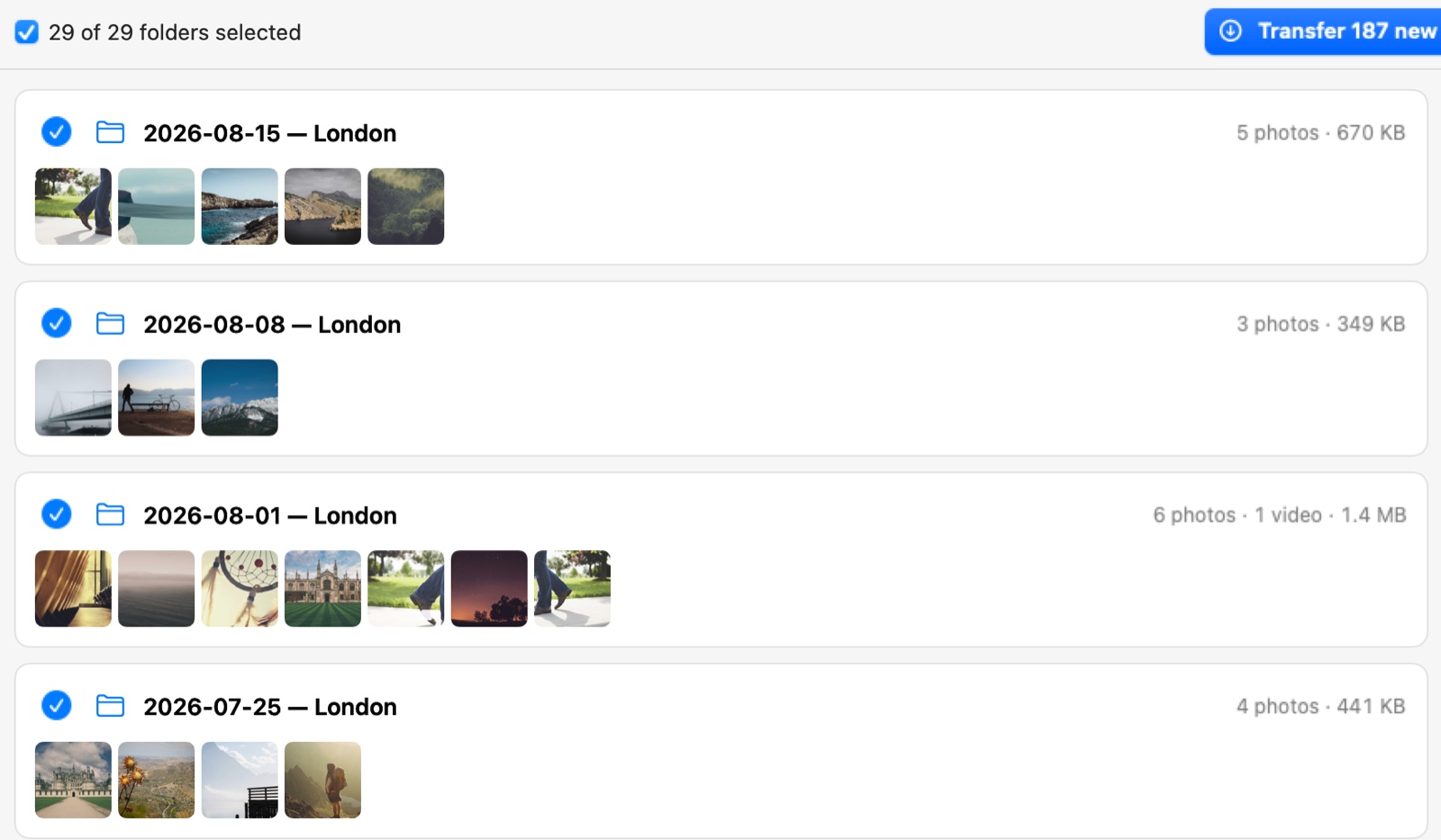
Photo Transfer shows the folders it’s about to create, one per day, before anything is copied.
First, the naming rule
Whatever you use, name the folders so they sort by themselves: year first, then month, then day, the same separator every time. 2026-05-16 Rome. 2026-05 Italy. 2026. Finder sorts names as text, so 2026-05-16 lands after 2026-05-09 and before 2026-06-01 without any help, and a folder from 2019 never ends up between two from 2026. Everything after the date is for you: a city, a trip, an event.
Month names as words look friendlier and sort wrong, May after June and both after April. Keep the numbers in front and add the word after if you want it. Stick to letters, numbers, dashes and spaces, and the names will survive a move to a drive, a NAS or a Windows PC.
Image Capture, then Finder: free and by hand
Image Capture comes with every Mac and copies everything into one folder you choose: connect the phone, pick the folder in the Import To menu, click Download All. If you want the HEIC and HEVC files exactly as the phone keeps them, set Keep Originals on the phone first, under Settings → Apps → Photos. Leave Delete after import off, for the reasons in the storage article.
Then the sorting is yours. Open the folder in Finder and switch to List view. Add the Date Created column (View → Show View Options) and check it against a photo you remember. If the dates are the day of the shot, sort by that column. If they’re the day of the copy, sort by Name instead: the phone numbers photos in the order they were taken, so a day is still a run of consecutive names. Select a run, Control-click it and choose New Folder with Selection, then type the name by the rule above.
It works, and for one phone and one evening it’s fine. It’s also the part people stop doing the second time, which is why the two other ways exist.
Photos: folders by memory, not by date
Photos imports into its library, not into a folder. But it can export into folders. Select the photos, choose File → Export → Export Unmodified Original (or Export [n] Photos if you want them converted), and in the dialog open the Subfolder Format menu: it divides the export into folders. The File Name menu lets you keep the file names, use the titles you gave the photos, or number them in sequence.
The catch is in the folder names. They follow Photos’ own grouping, a subfolder per memory in Apple’s example, named the way Photos names things, not a date you chose. A Live Photo comes out as two files, a still and a video. So this is a good one-time way to get folders out of a library you already keep in Photos, and a poor system for a monthly routine, because next month’s export starts from scratch and the names won’t line up with the rule.
Photo Transfer: folders by day, month or trip, straight from the phone
Photo Transfer is the app I make, and it does the sorting between the phone and the folder, so there’s nothing to do in Finder afterwards.
Plug in the phone, choose where the files go: a folder on the Mac, an external drive or a NAS share. Then pick how to group: By date with a step of a day, a month or a year; Events, for photos taken close together; or Trips, for places away from home. Before anything is copied you see the folders it’s going to create, with counts, sizes and thumbnails. Rename one in place, uncheck what should wait, or merge two into one folder.
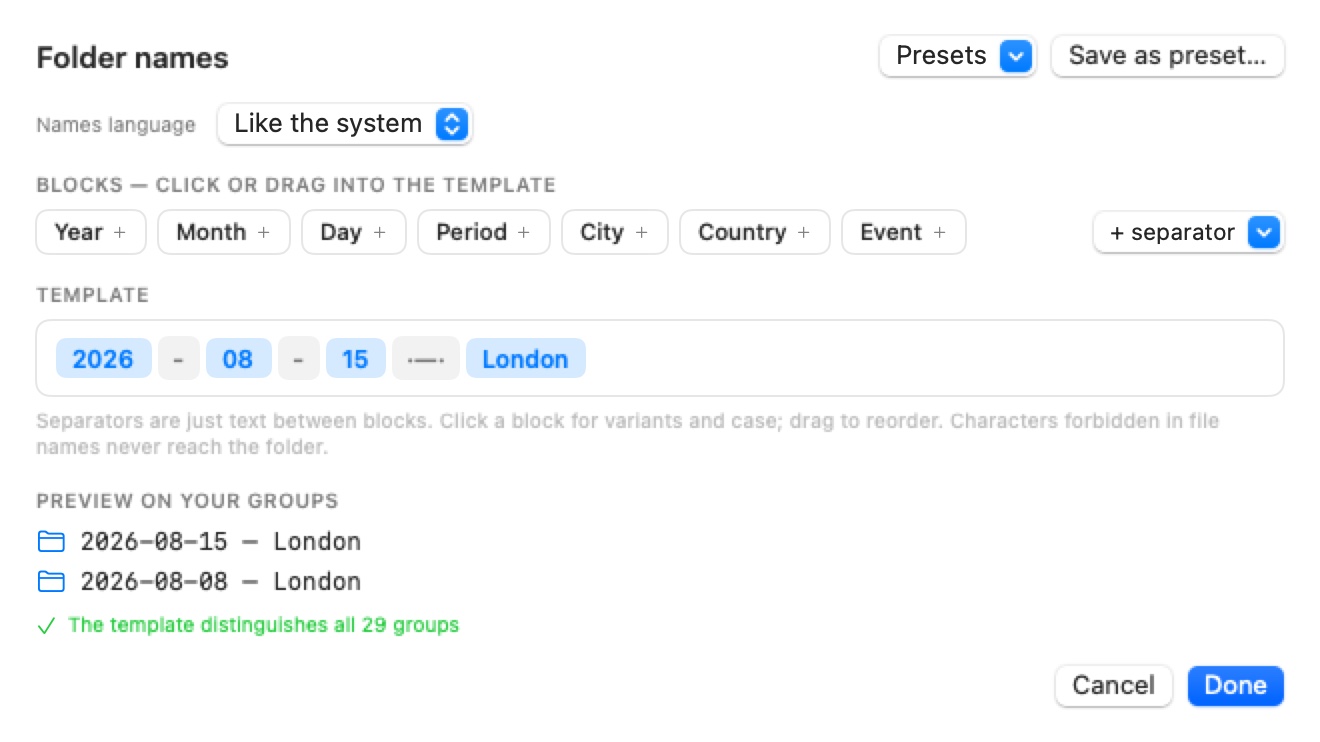
The names come from blocks: year, month, day, period, city, country, event, with your own separators and casing, so the rule from the top of this article is just a preset. The one that ships is the date and the city: 2026-05-16 — Rome. You can save your own and preview it on your own groups before you commit.
Inside the folders, a Live Photo and its video stay together, an edit stays next to its original, and the set is dated by the original. Every file is checked as it lands. If two phones share one folder, a prefix in front of every file name, the phone’s name or your own, keeps the IMG_4021s from colliding.
What it doesn’t do: nothing wireless, it’s a cable app, and nothing on the phone changes, the device is opened read-only. Mac only, macOS 15 or later. Free for 50 snapshots a day, $14.99 once for everything. How it compares with Image Capture and Photos row by row is in the comparison article.
Plug in the iPhone, see the folders before anything is copied, get your photos in folders by day, month or trip, named your way. Free for 50 snapshots a day, $14.99 once for everything.
Keep it working next time
The first sort is the easy part. The second one, a month later with three hundred new photos, is where systems fall apart.
With Image Capture and Finder you do it again by hand. Keep the same naming rule and the new folders drop into place between the old ones. With Photos you export again and get a new set of subfolders next to the old ones, under Photos’ names. With Photo Transfer you choose the same destination folder and it looks at what’s already there, so it offers only the photos that aren’t on the disk yet, and new days become new folders next to the old ones. It decides by looking at the folders themselves, so keep the layout and the names: a folder you renamed counts as new, and its photos get copied again under the new name.
Checklist
- Decide the naming rule first: year-month-day, then the place or the trip.
- Keep Originals on the phone if you want HEIC and HEVC files as they are.
- Image Capture: one folder, then Finder: List view, select a day’s run, New Folder with Selection.
- Photos: File → Export → Subfolder Format, folders by Photos’ own grouping.
- Photo Transfer: By date, Events or Trips, names from blocks, only new photos next time.
- Same destination and the same names every time.
 Photo Transfer
© 2026 Viacheslav Koniukhov. Sold on this site by Paddle as merchant of record. Apple, iPhone, iPad, Mac, macOS and App Store are trademarks of Apple Inc. Photo Transfer is an independent product, not affiliated with or endorsed by Apple.