Image Capture alternatives for Mac: what to use instead, and when
Image Capture is the app Apple quietly ships for getting photos off an iPhone over a cable, and for a one-off dump into a folder it’s fine. People start looking for an alternative when it shows fewer photos than the phone has, when every Live Photo arrives as two loose files, or when a few years of photos land in one folder under four thousand names like IMG_4021. Here’s what the other ways actually do differently, including the two that are already on your Mac, and when Image Capture is still the right tool.
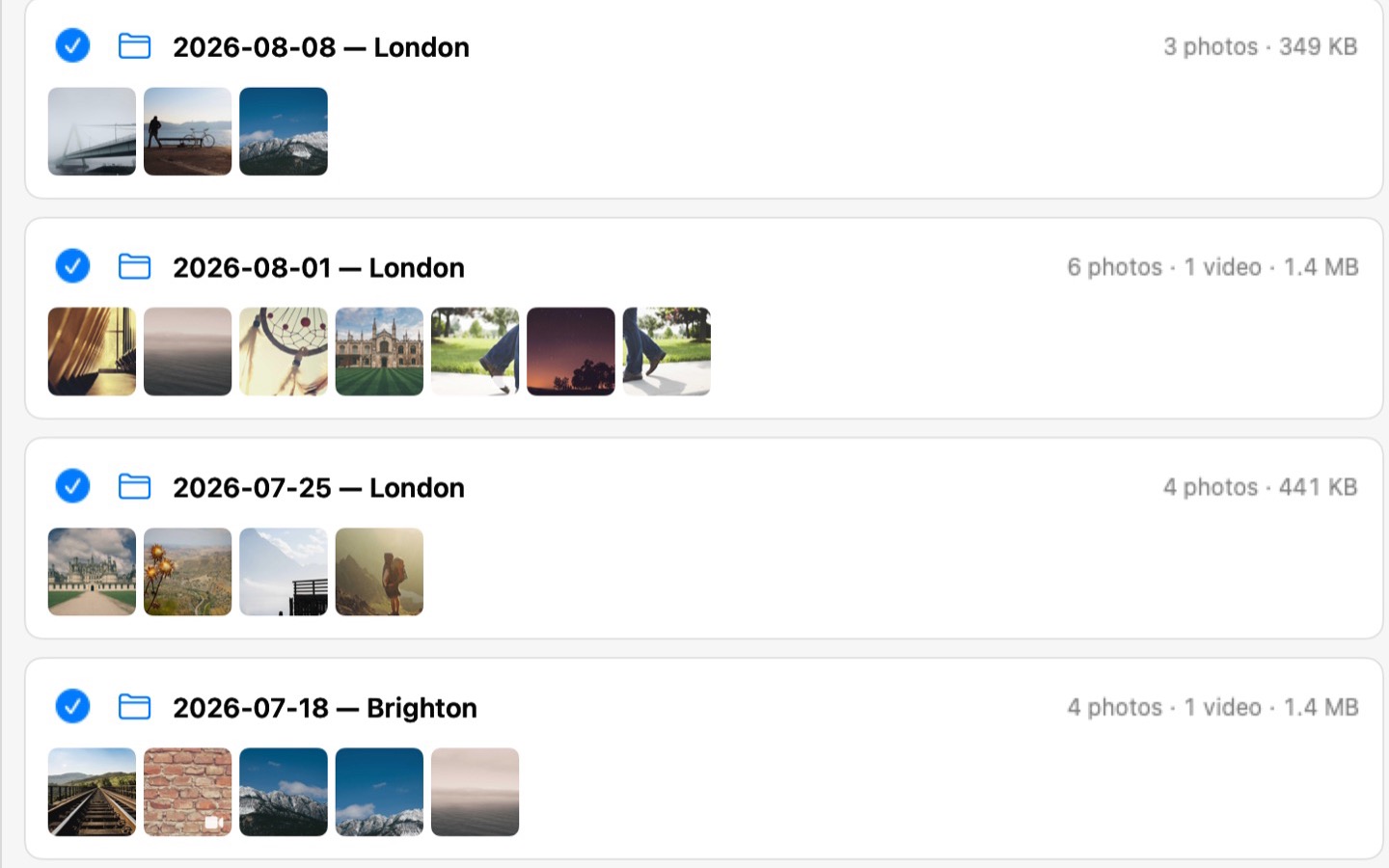
Photo Transfer shows the folders it’s about to create before it copies anything.
What Image Capture does, and where it stops
It comes with every Mac. Connect the phone, pick a folder in the Import To menu, click Download All, and every photo and video arrives as a plain file under the phone’s own name. No account, no library, nothing to learn. That list of virtues is also the list of where it stops.
Everything lands in one folder. Sorting by date, place or trip is up to you afterwards, and with a few thousand files that’s an evening in Finder.
A Live Photo arrives as two files, a still and a short video. Once you start moving files around, nothing ties them together, and an edited photo can bring a second version along under a different name.
It shows fewer photos than the phone has in several common cases, and in one of them the files do arrive, just smaller. The six causes and how to tell them apart are in the Image Capture article.
Delete after import deletes from the phone the moment the import finishes, before you’ve looked at a single file. The storage article explains why that’s the step worth doing by hand.
One thing to know about every app in this list, not only Image Capture: over a cable the iPhone may convert HEIC photos and HEVC videos to JPEG and H.264 on the way. If you want the files exactly as the phone keeps them, Apple’s setting is on the phone: Settings → Apps → Photos → Keep Originals.
Photos: the other built-in option
Photos imports into its library, not into a folder you choose. Connect the phone, click it under Devices in the sidebar, and either click Import to bring in everything new or select some and click Import Selected. The Album menu lets you put the batch into an album as it comes in. Leave the Delete items checkbox alone for the same reason as above.
The upside is one place for everything, with search, faces and maps, and Photos knows which photos it has already brought in. The downsides come from the same fact. The photos sit inside the library, so to get plain files you export them: File → Export → Export Unmodified Original. If Photos on the Mac uses iCloud Photos, everything you import goes up to iCloud and counts against your storage there. And the library lives on the Mac’s own disk unless you move the whole library to an external drive, which Apple allows only under a few conditions, described in the external drive article.
If you already live in Photos and iCloud, this is the natural choice. If what you want is a folder of files you can open anywhere, it’s a detour.
AirDrop: for a handful of photos
No cable at all. On the phone, select the photos, tap Share, tap AirDrop and pick your Mac. Apple’s conditions: the devices within 30 feet of each other, Wi‑Fi and Bluetooth on both. Signed in to the same Apple Account, the Mac accepts automatically and saves the photos in Downloads.
For ten photos from a weekend it’s the fastest thing there is. For a library it isn’t an option: you pick every photo by hand, and they land in Downloads under the phone’s names, so the sorting problem is the same as with Image Capture, only slower.
Photo Transfer: files in folders, checked, only new next time
Photo Transfer is the app I make, and it starts from the same place as Image Capture: a cable, plain files, a folder or drive or NAS share you choose. The differences are in what happens between the phone and that folder.
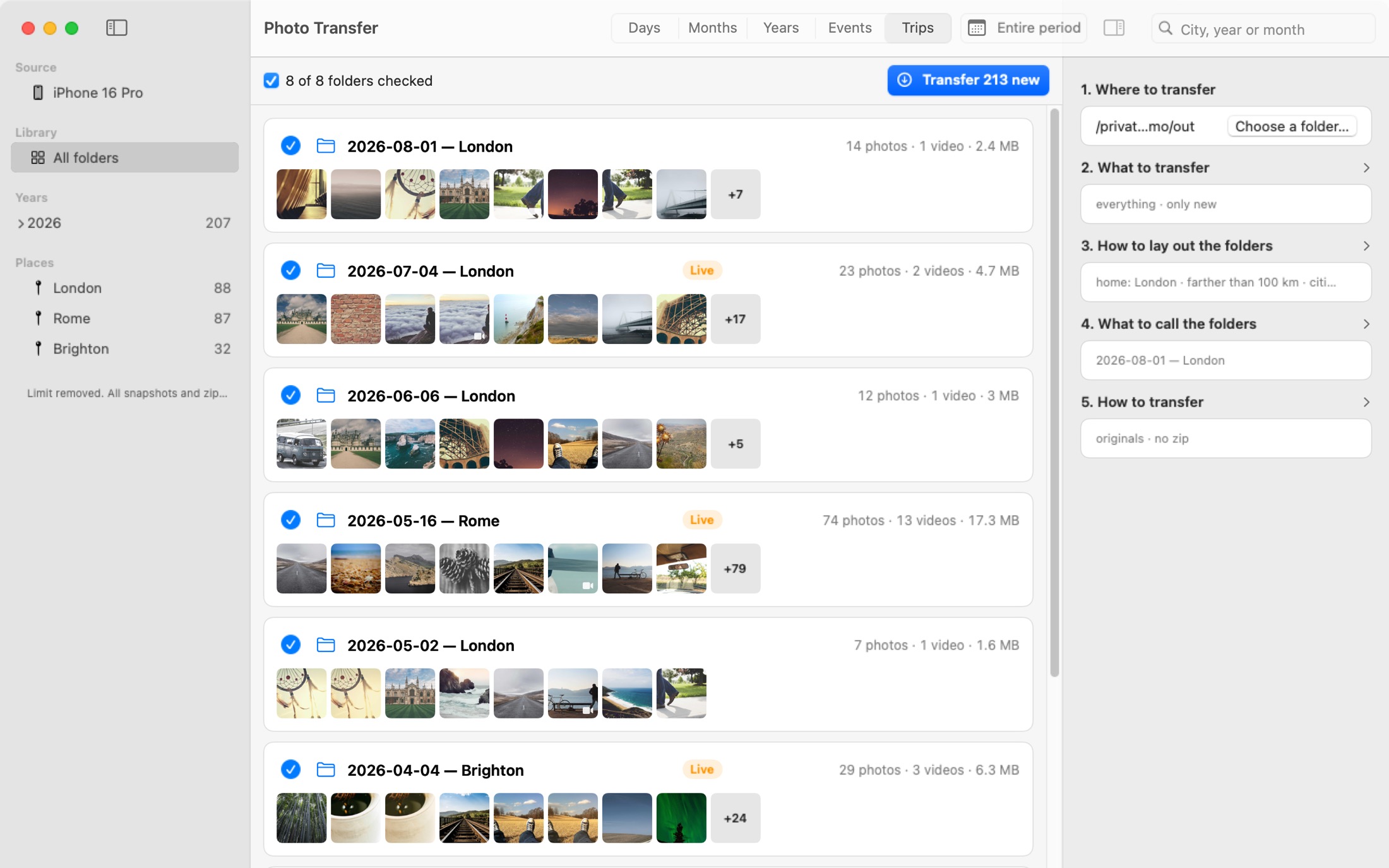
Before anything is copied, you see the folders it’s going to create: by day, month, event or trip, each named with the date and the place, and you can rename or uncheck any of them. A Live Photo and its video stay next to each other, and so does an edit next to its original. Every file is checked as it lands, and the report at the end says what landed where. If some photos are on the phone only as optimized copies, with the originals in iCloud, it counts them first and asks whether to copy them or skip them.
Next time you connect the phone and choose the same folder, it offers only the photos that aren’t there yet. It decides that by looking at the disk, not by a list kept somewhere, so a folder you moved to another drive still counts. If the cable comes out halfway, plug it back in and the transfer continues. Originals come across as they are, or you can have HEIC and HEVC converted to JPEG and H.264 on the way. And a transfer history window keeps every run, so weeks later you can see which files are safe to clear from the phone.
What it doesn’t do: nothing wireless, it’s a cable app. Nothing on the phone ever changes, the device is opened read-only, so there’s no delete option, and that’s deliberate. Mac only, macOS 15 or later. Free for 50 snapshots a day, $14.99 once for everything.
Plug in the iPhone, see the folders before anything is copied, get checked files on any disk. Free for 50 snapshots a day, $14.99 once for everything.
Which one to use
- A few photos right now: AirDrop.
- You keep everything in Photos and iCloud: Photos.
- Everything into one folder, once, for free: Image Capture, with Delete after import off.
- Files in folders by date or trip, on any disk, every time you plug the phone in: Photo Transfer.
| Image Capture | Photos | Photo Transfer | |
|---|---|---|---|
| Where the files land | One folder you choose, plain files | The Photos library | Any folder, drive or NAS, plain files |
| Folder structure | None, the phone’s names | Albums inside the library | By day, month, event or trip, named with the date and place |
| Live Photos and edits | Separate files | Kept together, inside the library | Kept next to the original |
| Checks each copy | — | — | Every file, with a report |
| History of transfers | — | Recently Saved and the Imports album, by batch | Every transfer, file by file: what landed where |
| Deletes from the phone | Optional, right after import | Optional, right after import | Never, the phone is read-only |
| Price | Free, built in | Free, built in | Free for 50 snapshots a day, $14.99 once |
If some photos don’t import at all
That’s not about which app you picked. Every app on the Mac sees the same list the phone hands over, so when photos are missing in Image Capture they’re missing in Photos and Photo Transfer too. The causes are the same as well: photos still in iCloud with Optimize iPhone Storage on, a phone that wasn’t unlocked, a cable that only charges, and three more, all in the Image Capture article along with the one case where the files arrive but smaller.
 Photo Transfer
© 2026 Viacheslav Koniukhov. Sold on this site by Paddle as merchant of record. Apple, iPhone, iPad, Mac, macOS and App Store are trademarks of Apple Inc. Photo Transfer is an independent product, not affiliated with or endorsed by Apple.